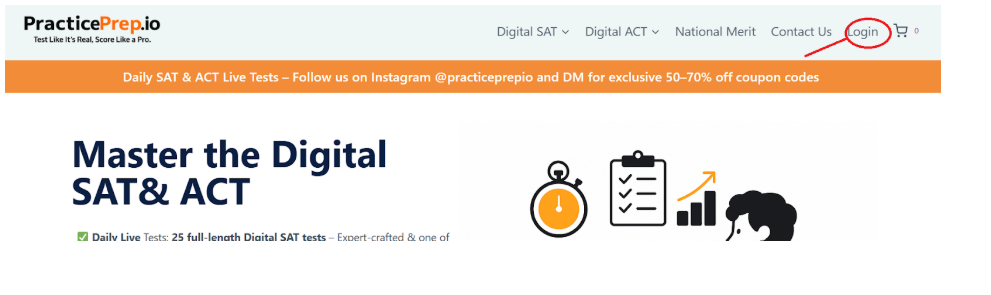
Click on Login link
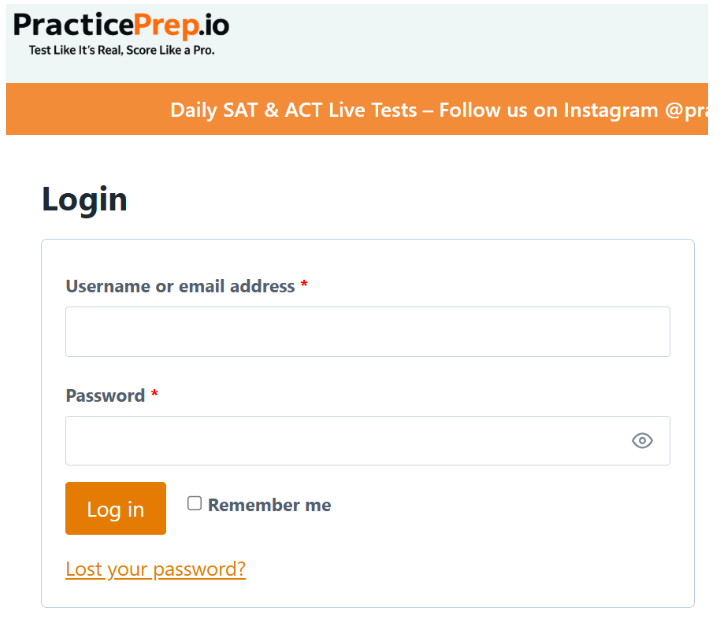
Enter your email and password to log in to PracticePrep.
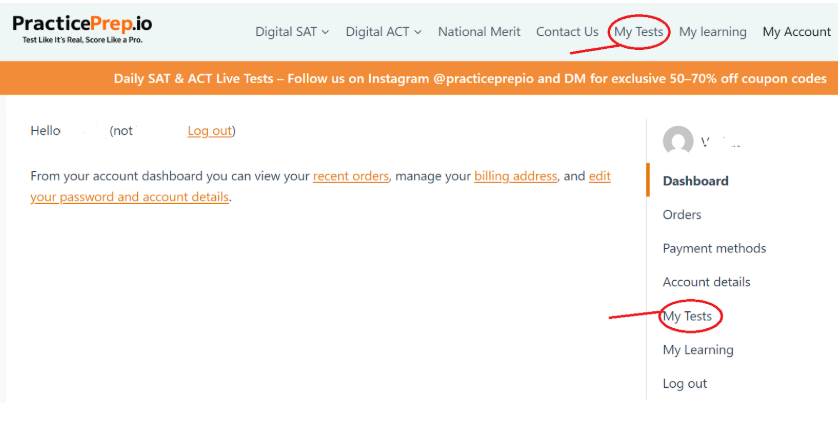
Once you have successfully logged in, locate and click on the ‘My Tests’ link to view your available assessments.
On the ‘My Tests’ page, locate the link labeled “View My Completed Test Assessments” and click on it to access your past test results.
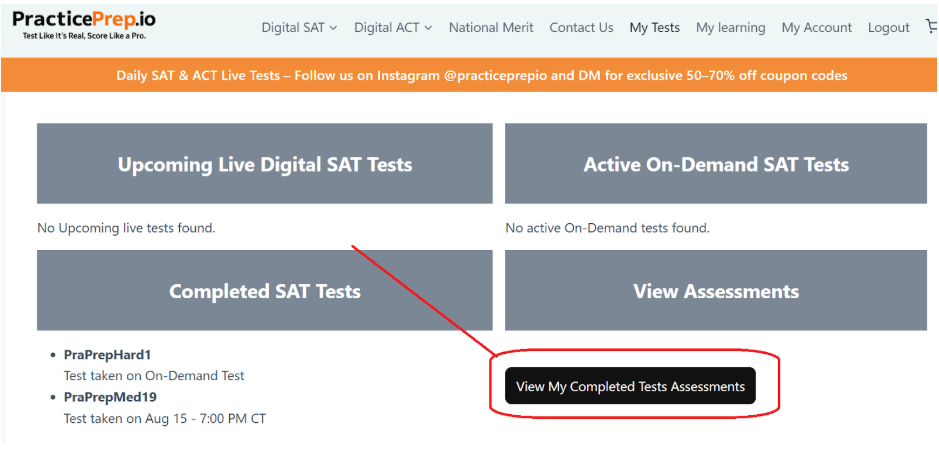
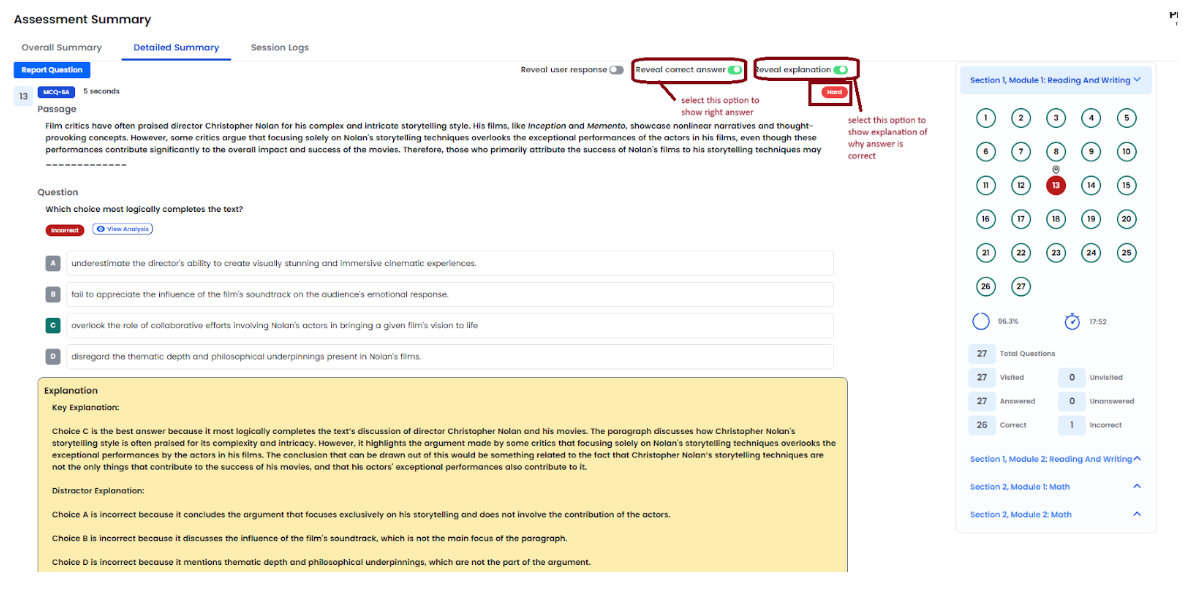
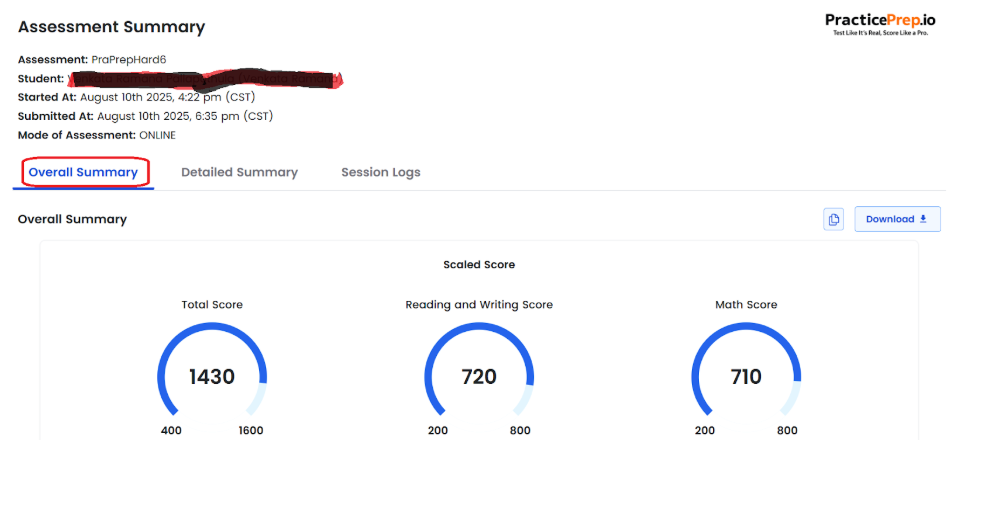
It displays a list of your completed tests. Simply click on any test to view its Assessment Summary. The first tab, Overall Summary, provides your score, section-wise breakdown, and key performance metrics.
The second tab, Detailed Summary, shows which questions you got wrong or left unanswered. Click on any question to review the correct answer and explanation.
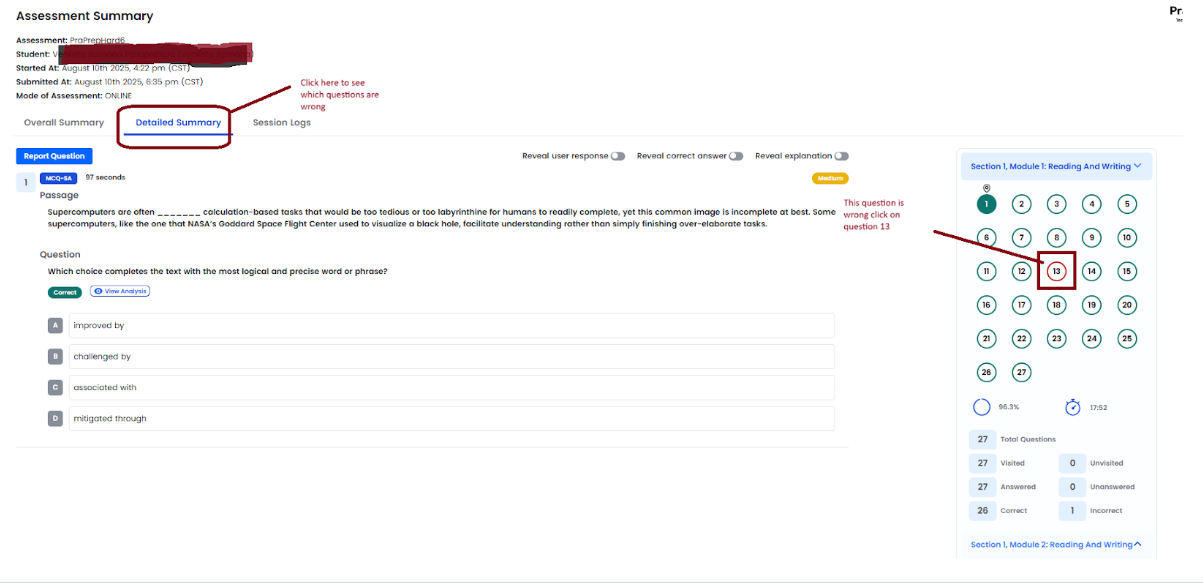
When you click on a question you answered incorrectly, the full question and answer options will appear. To understand the correct response, select the checkboxes for “Reveal Correct Answer” and “Reveal Explanation”—this will show the right answer and explain why it’s correct.